Set up gallery feed
SQL Server Management Studio is capable of subscribing to extension feeds, so you will be notified of any updates to extensions found in this gallery. You will only be notified of any updates to extensions that you already have installed.
Get the Open SSMS VSIX Gallery extension
To get automatic updates to any of your installed extensions that publishes their nightly builds to this website, simply install the Open SSMS VSIX Gallery extension. The extension just registers the main feed into SQL Server Management Studio for you, so you don't have to do it manually. If you want to make any customizations instead, please continue reading.
Choose the right feed
There are several feeds in this gallery you can subscribe to.
- The main feed
- By subscribing to the main feed you will be notified by SQL Server Management Studio whenever any of the extensions in this gallery are updated. The feed contains all extensions available.
- Feed per author
- Each extension author has their own feed, so you can choose to subsribe to one or more authors' extensions.
- Feed for individual extension
- If you're only interested in getting updates to specific extensions, then you can subsribe to feeds for that one extension.
Setup
In SQL Server Management Studio go to Tools -> Options -> Environment -> Extensions and Updates.
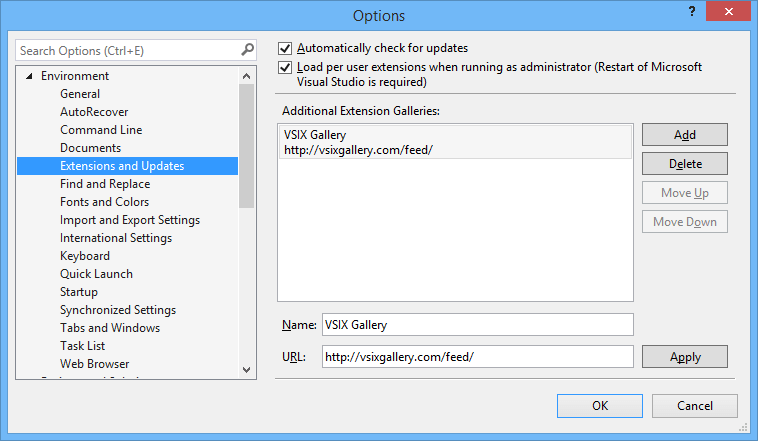
Click the Add button and fill in the name and URL fields.
Name: Give it a name you like
URL: Could be the main feed https://www.vsixgallery.com/feed/
And finally click the Apply button.
That's it. You've now added the nightly feed to SQL Server Management Studio and updates will start to show up in Tools -> Extensions and Updates dialog
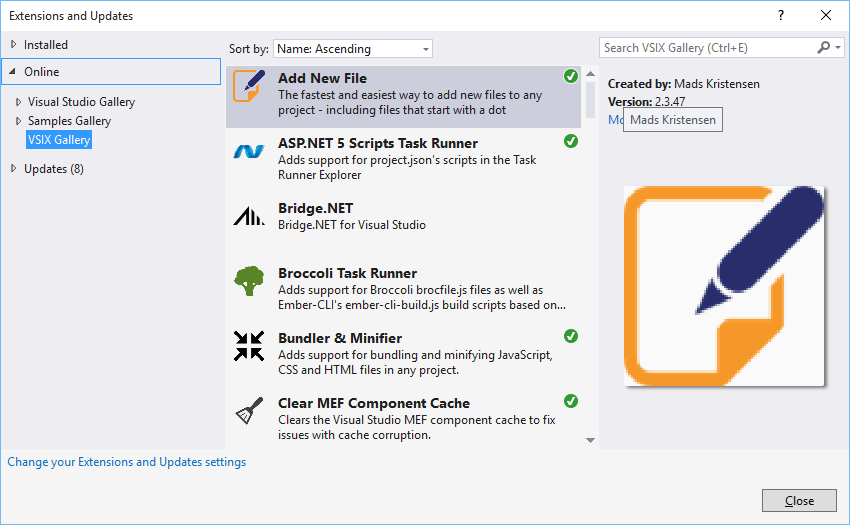
Extensions and Updates
You can now see the updates coming in to the Tools -> Extensions and Updates dialog.